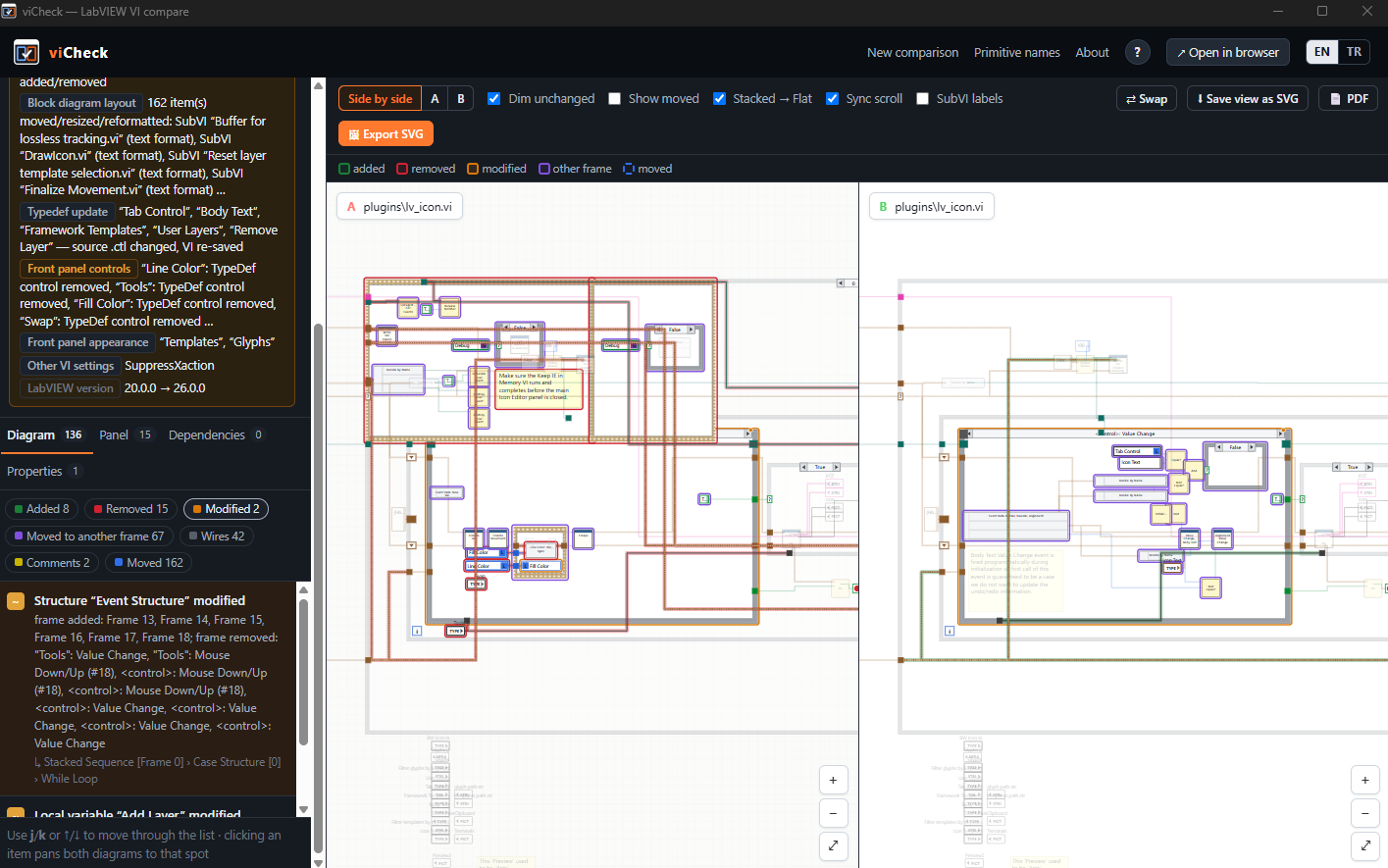
Compares two VIs or two folders. Block diagrams are parsed without LabVIEW and drawn side by side as SVG. The engine (pylabview + diff + drawing) is the same as in the VIVER project; viCheck only compares — no repositories or commits.
Getting started
- Download the package with the floppy disk at the top of this page (
viCheck-win64.zip). - Unzip it anywhere and start
viCheck\viCheck.exe.
Nothing has to be installed: Python, Flask and pylabview are inside the folder, and LabVIEW is not needed.
Requirements and notes
- Windows 10 or 11, 64-bit.
- The window uses Microsoft Edge WebView2, which is part of Windows 11 and of an up-to-date Windows 10. Without it viCheck opens in an Edge/Chrome window or the default browser instead.
- PDF reports are printed by Microsoft Edge (or Google Chrome).
- The exe is not signed, so Windows SmartScreen may warn on the first start: More info → Run anyway.
- The
.exealone does not work: it needs the_internalfolder next to it. - On the first start a short how to use window opens; the ? button at the top shows it again.
- Settings and cache are kept per user in
%LOCALAPPDATA%\viCheck; primitive names are read from LabVIEW's palettes only if LabVIEW is installed on that computer.
Usage
- Choose a VI or a folder for A (old) and B (new): Choose VI… / Choose folder…, paste a path, or drop the file/folder on its box (drop two items at once to fill A and B). Compare.
- Two VIs → block diagram diff: list of changes, diagrams side by side, added/removed/modified items in color.
j/kmove through the changes. - Two folders → files are matched by relative path: modified, only in A, only in B, moved, and identical files. A summary for every VI (content / visual-layout / re-saved only). Text diff for text files.
- SVG
- Right-click → Inspect in the window to look at the SVG elements, or ↗ Open in browser and use F12.
- ⬇ Save view as SVG: saves the A + B view exactly as shown, as one SVG file.
- 🖼 Export SVG: draws the A and B diagrams with numbered change markers into SVG files (+ README.md).
- In a folder comparison, 📄 Report with SVG images…: a Markdown report with SVGs for every changed VI (also as ZIP).
- PDF: 📄 PDF in a VI comparison, Also make a PDF in a folder report. The PDF is printed by Microsoft Edge, which comes with Windows; the SVGs stay vector graphics (sharp when zoomed, text can be searched). For every VI:
- the list of changes and the whole A and B diagram in one image (side by side or one above the other, whichever is drawn larger on the page);
- detail views: nearby changes are grouped and each group is cropped from the same area of A and B and printed at about 1:1 (LabVIEW's 100 % size), so changes stay readable even when the overview of a large VI is small;
- Stacked Sequences are shown frame by frame in the PDF by default (unfolded they get very wide and shrink on the page); Stacked Sequence → Flat is an option.
- Contents are chosen when the report is made: summary tables, change lists, whole diagram, detail views, other files. For one VI, the export page has the same choices and ↻ Generate again.
- Sidebar: in a VI comparison the file details at the top fold away with ▴ Hide, giving the change list more room.
- Primitive names: VI files store primitives only by number; the names come from the palettes of a LabVIEW installation. On first start viCheck reads them from the newest LabVIEW on the computer. If your VIs were made with another LabVIEW version, or LabVIEW is not installed, import the names from that version's folder on the Primitive names page (or name a primitive by double-clicking it on a diagram); otherwise it is shown as
#number. - Language: the interface is in English and Turkish; switch with EN / TR at the top right, the choice is saved. On first start the Windows language is used. Reports and SVG exports are written in the chosen language; LabVIEW's own terms (Value Change, Case Structure…) stay in English, as in LabVIEW.
Command line / calling from LabVIEW
viCheck.exe "C:\old\Main.vi" "C:\new\Main.vi"
viCheck.exe "C:\project_v1" "C:\project_v2"
viCheck.exe --browser            (opens in the default browser instead of the window)
The same command can be run from LabVIEW with System Exec.vi.
What it can read
On top of what pylabview extracts, viCheck decodes property and method names of Property/Invoke Nodes, targets of reference constants, event names of Event Structure frames ("OK": Value Change, <This VI>: Panel Close?, Timeout), Event Data Node fields, contents of cluster/array/path constants, keyboard shortcuts of controls (Enter/Esc/F1) and text format changes. Event codes that cannot be identified with certainty are shown with candidate names, e.g. Mouse Down/Up (#8).
Safety
Compared files are only read. Every VI is first copied to a private temporary folder, the copy is checked against the hash taken at comparison time, and pylabview reads the copy in a separate process. Cache, exports and primitive names are kept in %LOCALAPPDATA%\viCheck (change with the VICHECK_DATA environment variable).
Window
viCheck opens in its own window using Windows' built-in Microsoft Edge WebView2 (pywebview); the interface is the same as in a browser. Without WebView2 it opens as an Edge/Chrome app window, or else in the default browser.
Why not Electron: the engine that reads VIs is written in Python, and Electron would still need Python bundled next to it. This way the exe is much smaller and the interface is still Chromium based.
Building from source
The source code is on GitHub. pylabview is included as a git submodule, so clone with --recursive:
git clone --recursive https://github.com/abdullahcavuss/viCheck.gitThen double-click build.bat (Python 3.9+ is needed only for building). The result is dist\viCheck\viCheck.exe and the same folder zipped as dist\viCheck-win64.zip. If Inno Setup 6 is installed, build.bat also makes an installer, dist\viCheck-Setup-<version>.exe. To try it without building, use run.bat.
License
MIT. pylabview (MIT) is used as a submodule — the library comes from the heap-descriptions branch of the abdullahcavuss/pylabview fork of mefistotelis/pylabview. LabVIEW is a trademark of National Instruments Corporation.